Change Rocky Linux network configuration
Change the Rocky Linux network configuration from the local terminal.
Changing the network configuration restarts the selected connection. Perform this procedure from the machine console and avoid remote sessions such as SSH.
To open the text interface for network connections, run:
nmtui-edit
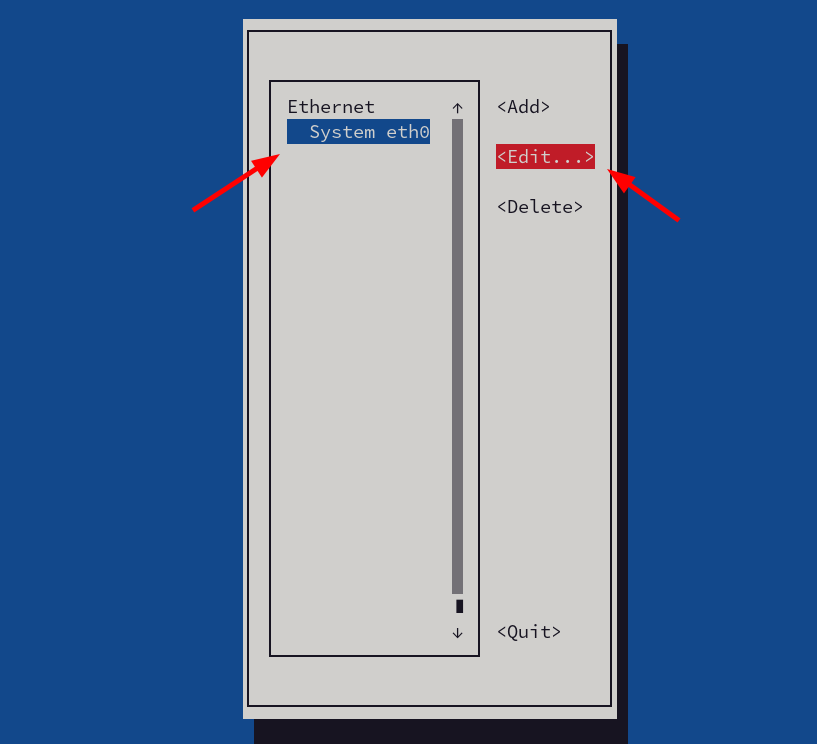
The screen lists the Ethernet connections available on the machine. Select the connection you want to change, move to Edit, and press Enter.
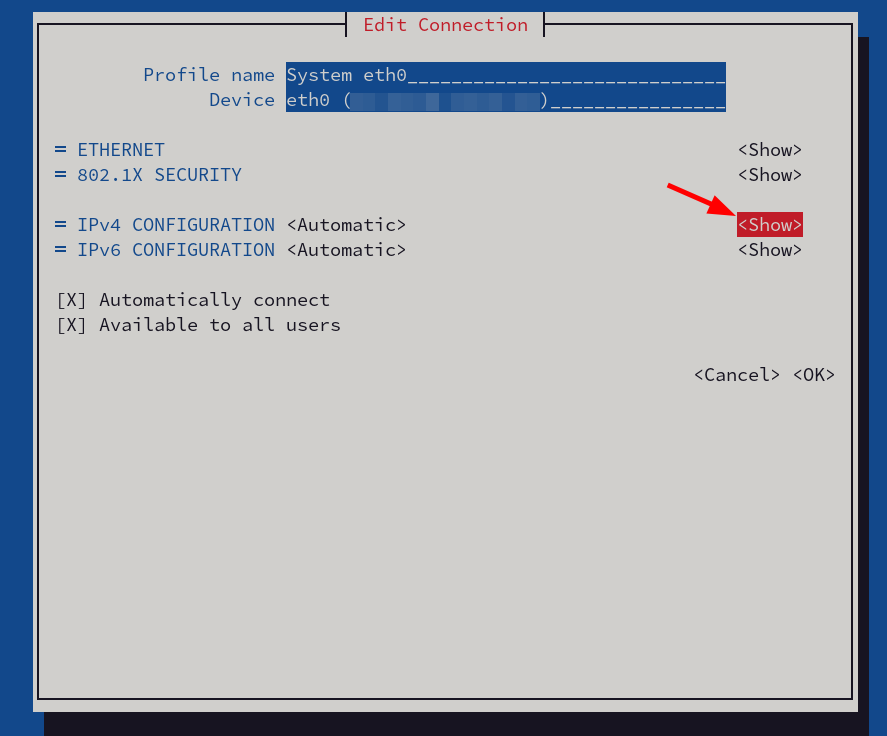
The current configuration is usually Automatic (DHCP). Move to Show and press Enter.
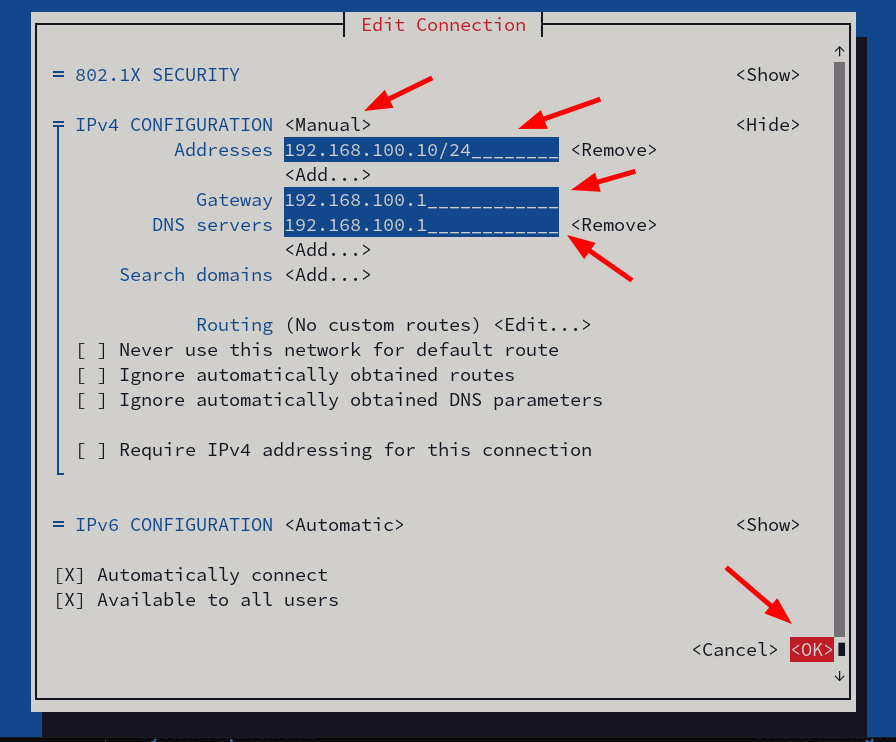
Use Tab to move between fields and Enter to edit and confirm values. Then:
- Change the configuration type from Automatic to Manual.
- Select Add next to Address and enter the IP address in CIDR notation.
- Select Add next to Gateway and enter the network gateway IP address.
- Select Add next to DNS servers and add at least one DNS server.
After completing the configuration, move to OK and press Enter.
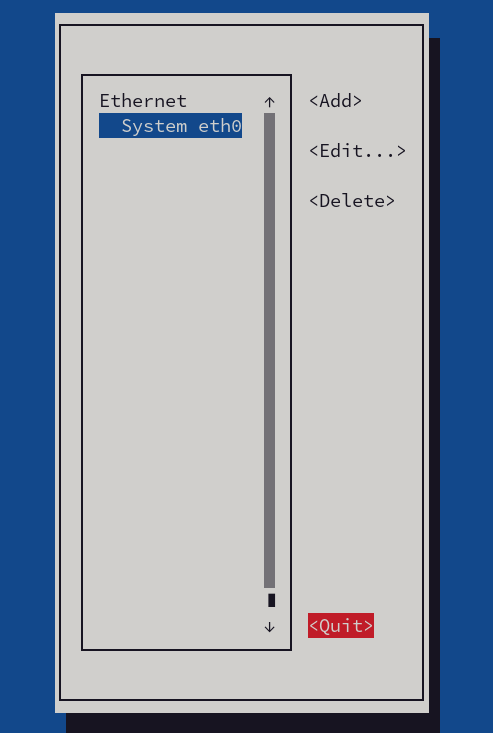
Back in the Ethernet connections menu, move to Quit and press Enter.
Back at the shell prompt, restart the modified network connection to apply the changes.
In this example, the connection name is System eth0:
nmcli connection down "System eth0" && nmcli connection up "System eth0"
To list the available connection names, run:
nmcli connection show
The network changes are applied after the connection restarts.
CIDR notation
CIDR notation writes an IP address together with its network prefix length, separated by a
slash. For example, 192.168.1.10/24 means:
192.168.1.10is the host IP address/24means the first 24 bits identify the network
In a typical home or office network, /24 usually corresponds to the netmask
255.255.255.0.