WebTop user guide
End-user features of the WebTop groupware.
Authentication
Always use the full user name format <user>@<domain> for login to the web application and Active Sync.
Example
- Server name: mymail.mightydomain.com
- Alternative mail domain: baddomain.net
- User: goofy
- Login: goofy@mightydomain.com
Active Sync protocol is supported only on Android and iOS devices. Outlook is not supported.
User settings management
Most user settings can be directly managed by the user itself via the settings menu. Locked settings require administrative privileges.
The administrator can impersonate users, to check existing accounts using special login credentials:
- User name:
admin!<username> - Password:
<WebTop admin password>
While impersonating you receive similar user privileges, allowing you to control exactly what the user can see. Full administration of user settings is available directly in the administration interface, by right-clicking on a user: the settings menu will open the full user settings panel, with all options unlocked.
You can also change the email of all selected users:
- select the users (Click + CTRL for multiple selection)
- right-click on Bulk update email domain
Two-factor authentication (2FA)
WebTop supports two factor authentication. The user can choose between:
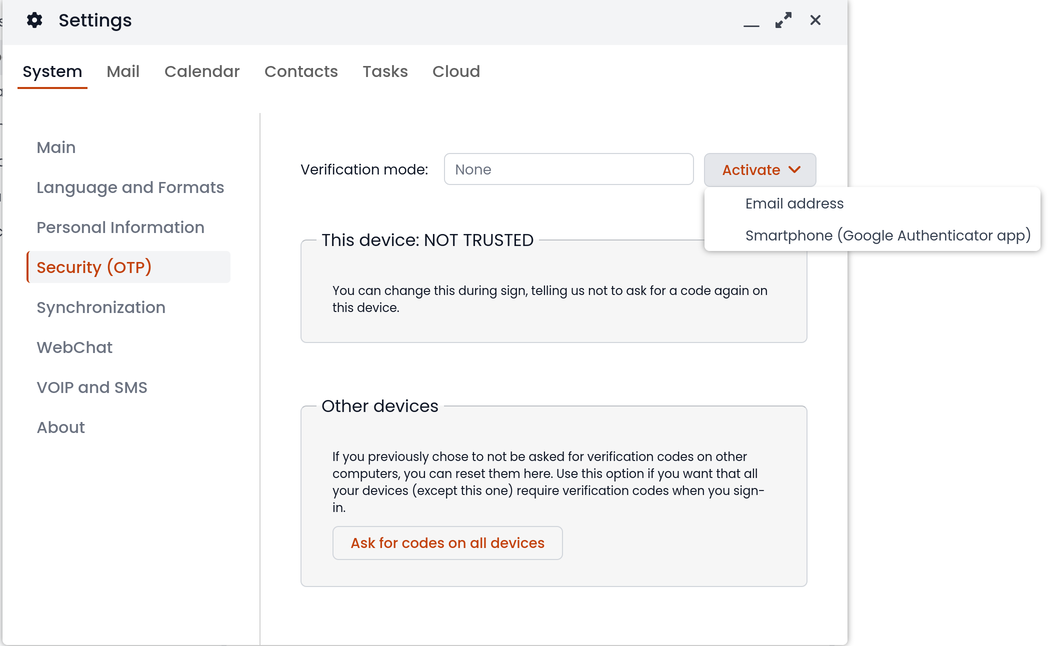
To enable 2FA:
- click on the menu button on the top-right corner and select the Settings icon
- then select Security and click on the Activate button
ActiveSync (EAS) synchronization
Mobile devices can be synchronized using ActiveSync. ActiveSync can be used only for contacts and calendars.
Apple iOS
Access your iOS device, navigate to Settings and add an Exchange account following the official guide.
Fill the required fields with:
- E-mail: add your mail address, eg: goofy@nethserver.org
- Server: add your server public name, eg: mail.nethserver.org
- Domain: leave blank
- User name: enter your full user name, eg: goofy@nethserver.org
- Password: enter your password
iOS devices require a valid SSL certificate on the server. See TLS certificates
Google Android
Access your Android device, navigate to Settings, then select Add account -> Exchange (or Company for older releases).
Fill the required fields with:
- User name: enter your full user name, eg: goofy@nethserver.org
- Password: enter your password
Then select Manual configuration and change the name of the Server field accordingly to your server public name. Finally, if you have a self-signed certificate on your server, make sure to select SSL/TLS (accept all certificates) option.
On some Android releases (notably Samsung), the User name and Domain must be entered in the same line. In this case, leave blank the field before the backslash character \, and enter the user name in the following format: \goofy@nethserver.org
Multiple calendars and contacts
Shared calendars and address books can be synchronized using the ActiveSync protocol.
Shared resources are displayed with the owner's name and category. The number in square brackets is the internal id. Private events are not synchronized.
Mobile devices based on Apple iOS fully support folders/categories for calendars, contacts and activities (called reminders), including original colors.
Mobile devices based on Android support only calendars and contacts, activities are not supported. Using the Google Calendar application all items will have the same color.
Installing and using the CloudCal application, you can change the colors associated with each calendar, including shared ones.
On Android devices, contacts from shared phone books are merged with the personal phone book and displayed in a single view. Contacts can be modified and changes will be saved in the original source.
In order to receive data via EAS on mobile devices, shared resources (Calendars and Contacts) should have synchronization enabled (Active or Read-only):
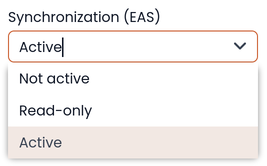
It is possible to enable or disable the synchronization for each shared resource.
To do so, just right-click on the shared resource Customize → Devices sync.:
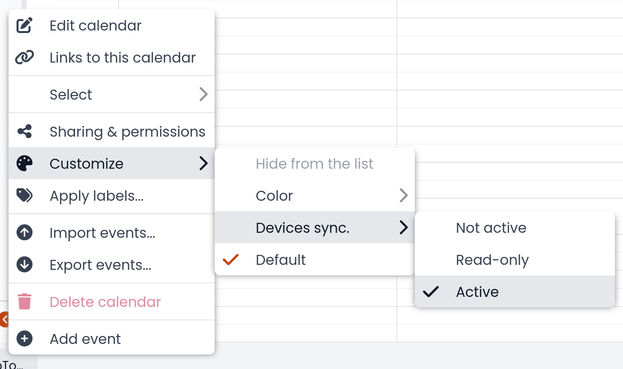
The default setting is Not active.
CalDAV and CardDAV synchronization
Calendars and address books can be synchronized also through the CalDAV and CardDAV protocols.
To synchronize a calendar, pick up its URL link right-clicking on the calendar and selecting Links to this calendar, then use it to configure your third-party client.
To synchronize an address book, pick up its URL link right-clicking on the address book and selecting Links to this address book, then use it to configure your third-party client.
To authenticate, provide your credentials in the following form:
- User name: enter your full user name (i.e. goofy@nethserver.org)
- Password: enter your password
Some third-party clients allow simplifying the configuration through the auto-discovery feature that automatically discovers the synchronizable resources, as in the case of mobile devices (i.e. Android or iOS devices).
If you are using clients that do not support auto-discovery, you need to use the full URL: https://<server_name>/webtop-dav/server.php
If you are using clients that support auto-discovery use the URL: https://<server_name>
Google Android
A good Android third-party client is DAVx5.
- add a new account clicking on + key and select Login with URL and username method
- insert the
URL(https://<server_name>), full username (i.e. goofy@nethserver.org) and password - click on the new profile and select the resources you want to synchronize
Apple iOS
CalDAV/CardDAV support is built-in on iOS, so to configure it:
- go to Settings -> Account and Password -> Add account
- select Other -> Add CalDAV or CardDAV account
- insert the server name (i.e. server.nethserver.org), full username (i.e. goofy@nethserver.org) and password
Desktop clients
Thunderbird
Thunderbird already includes support for CalDAV calendars. To synchronize the contacts with CardDAV you need a third-party add-on like Cardbook.
Outlook
The Open Source CalDAV Synchronizer plugin for Outlook supports both CardDAV and CalDAV.
WebTop is a client-less groupware: its functionalities are fully available only using the web interface!
The use of CalDAV/CardDAV through third-party clients cannot be considered a web interface alternative.
Sharing email
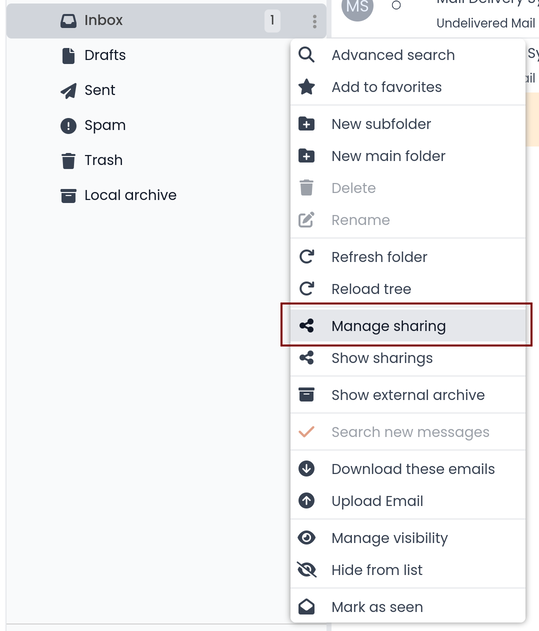
It is possible to share a single folder or the entire account with all subfolders. Select the folder to share -> right click -> Manage sharing:
- select the user to share the resource (1)
- select if you want to share your identity with the user and even to force your signature (2)
- choose the level of permissions associated with this share (3)
- if you need to further change permissions, select
Advanced(4) - finally, choose whether to apply sharing only to the folder from which you started, or only to the branch of subfolders or to the entire account (5)
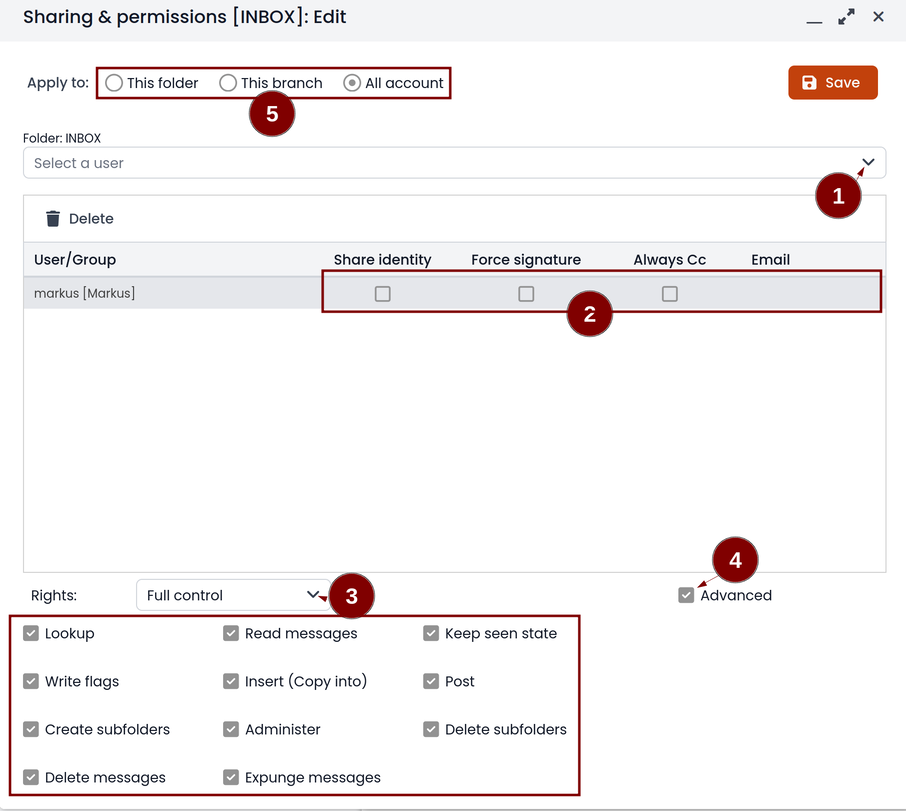
The Force mailcard option can be used only if the mailcard has been associated to the mail address.
Sharing calendars and contacts
Sharing Calendar
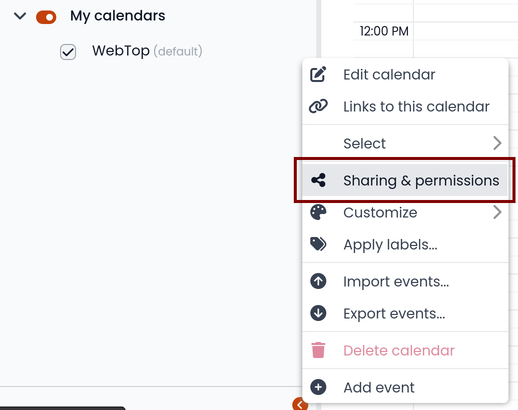
You can share each personal calendar individually. Select the calendar to share -> right click -> Sharing and permissions:
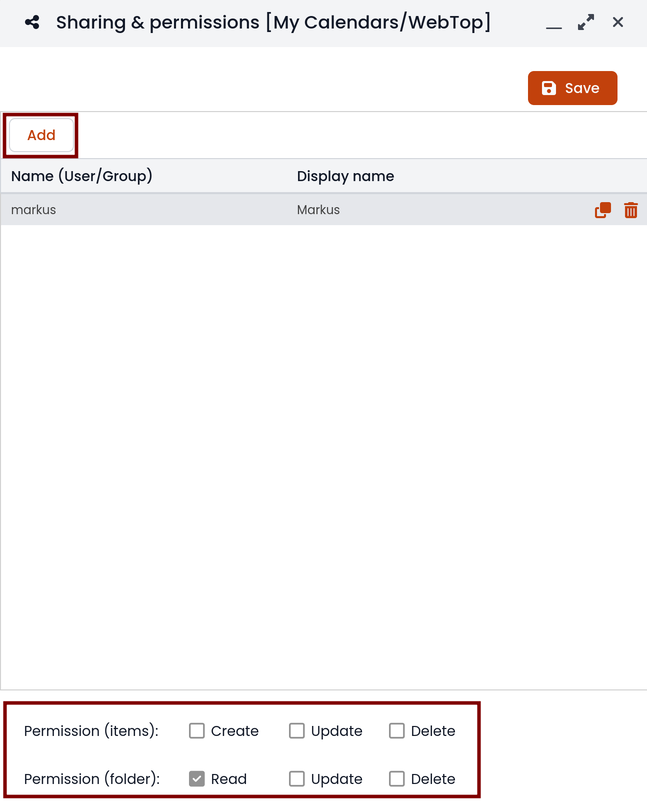
Select the recipient user of the share (or Group) and enable permissions for both the folder and the individual items:
Sharing Contacts
In the same way, you can share your contacts by selecting the directory you want to share -> right click -> Sharing and permissions. Select the recipient user of the share (or Group), and enable permissions for both the folder and the individual items.
Mail inline preview
By default, the mail page will display a preview of the content of the latest received messages.
This feature can be enabled or disabled from the Settings menu, under the Mail tab, the check box is named Show quick preview on message row.
Mail archiving
Archiving is useful for keeping your inbox folder organized by manually moving messages.
Mail archiving is not a backup.
The system automatically creates a new special Archives folder
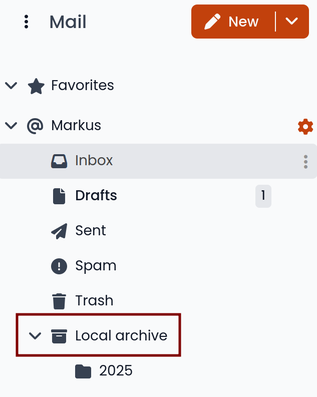
If the Archives folder does not appear immediately upon login, it will appear at the first archiving.
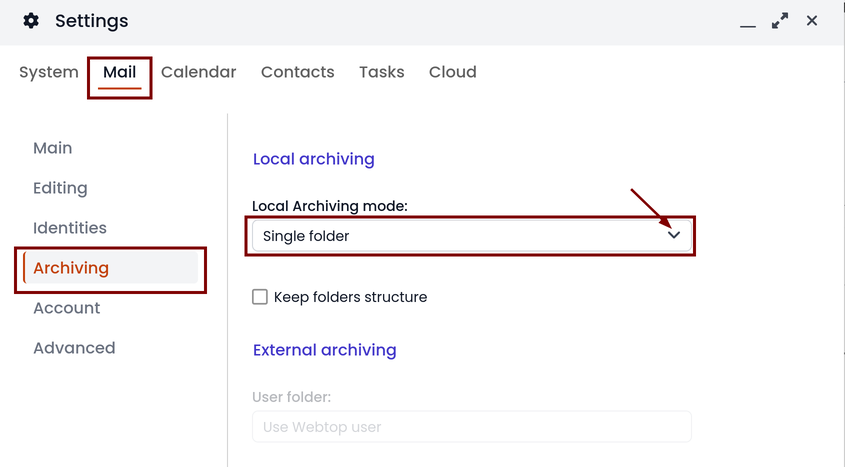
There are three archiving criteria:
- Single folder: a single root for all archived emails
- Per year: a root for each year
- By year / month: a root for each year and month
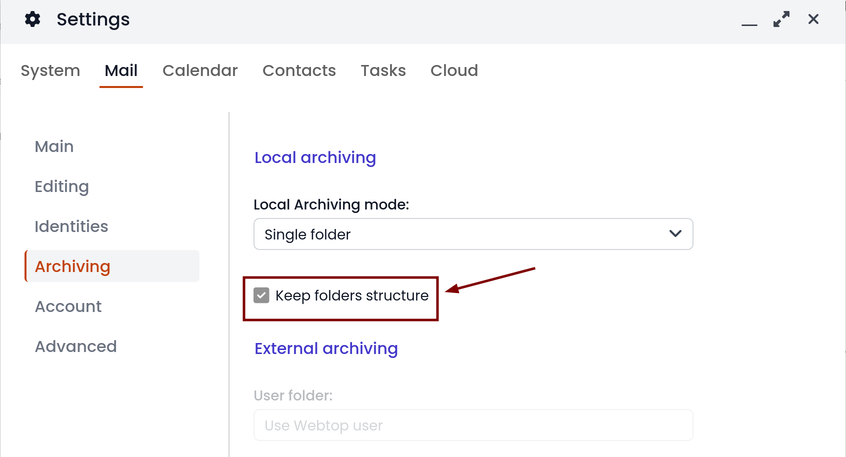
To maintain the original structure of the folders it is possible to activate Keep folders structure
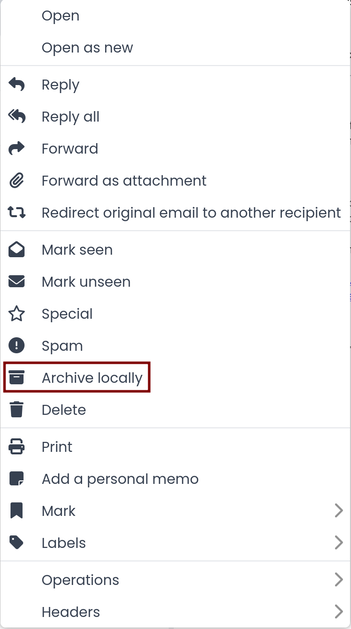
The archiving operation is accessible from the contextual menu (right-click). Click on Archive
The system will process archiving according to the last settings chosen.
IMAP folders subscription
By default, all IMAP folders on the server are automatically subscribed and therefore visible since the first login.
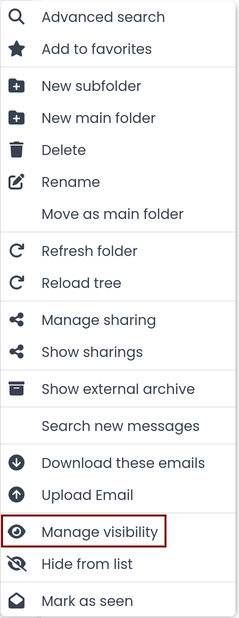
If you want to hide some folders from the view, which is equivalent to removing the subscription, you can simply right-click on the folder to hide and select from the interactive menu the item Hide from list.
For example, if you want to hide the subfolder folder1 from this list, just right-click on it and select Hide from list:
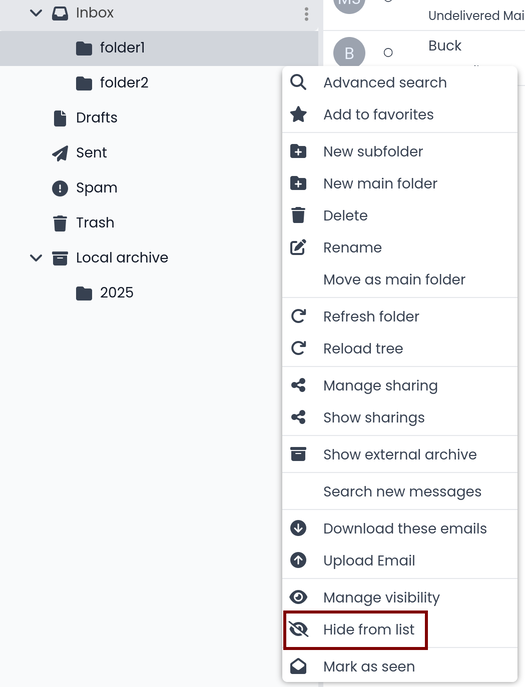
It is possible to manage the visibility of hidden folders by selecting the Manage visibility function:
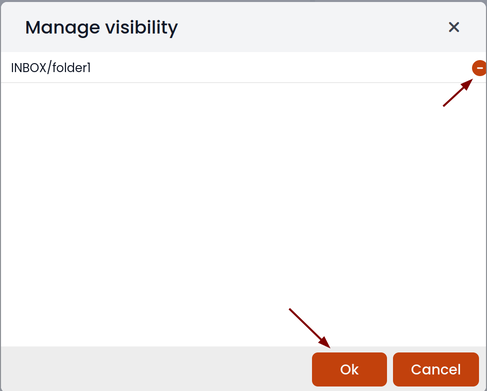
For example, if you want to restore the subscription of the folder1 just hidden, just select it from the list of hidden folders and click on the icon on the left:
Export events (CSV)
To export calendars events in CSV (Comma Separated Value) format, click on the  button in the top right corner and select ERP export (CSV)
Finally, select a time interval and click on Next to export into a CSV file.
Tasks
Quick view filters
In the toolbar above the grid there are 7 buttons that allow you to select the most suitable quick view. The first two buttons refer to today's activities or to those planned within the next 7 days:

- Today: shows unfinished tasks without a start date or with a start date up to today (inclusive) and those completed with an end date up to today (inclusive)
- Next 7 days: shows uncompleted tasks with no start date or starting up to 7 days from today and completed tasks with completion date up to now (inclusive)
The remaining 5 buttons allow you to obtain these other types of quick views:

- Not started: shows only activities with status "To be started" and starting today (inclusive)
- Late: shows only uncompleted tasks with start date up to today (inclusive) and completion date previous to the current one
- Completed: shows all activities with status completed and with any date range
- Not completed: shows all activities with status other than completed and start date within 1 year (for recurring tasks, only the first instance of the series still to be completed is shown)
- All: shows all activities in any status (for recurring tasks the series icon main is shown)
Recurring tasks
It is possible to configure any type of recurrence:
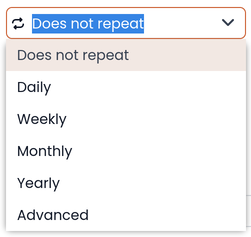
Editing a recurring activity can be done in two different ways:
- on the individual task by opening it with a double click from a view other than All In this case the task will be removed from the recurrence and its icon will become this one:

- on the entire series with a double click from the All view or by using the following button on the single task already open:

Sub-tasks
On any task it is always possible to add related sub-tasks (one Master/Slave level only) simply by using the right button and selecting Add sub-task Within the connected tasks, both in the master and in the slave, a link is available at the bottom right to open the related tasks:

It is possible to Move or Copy this type of activity (right click -> Move/Copy) by choosing to copy or move the sub-activities through an option active by default.
Multiple searches
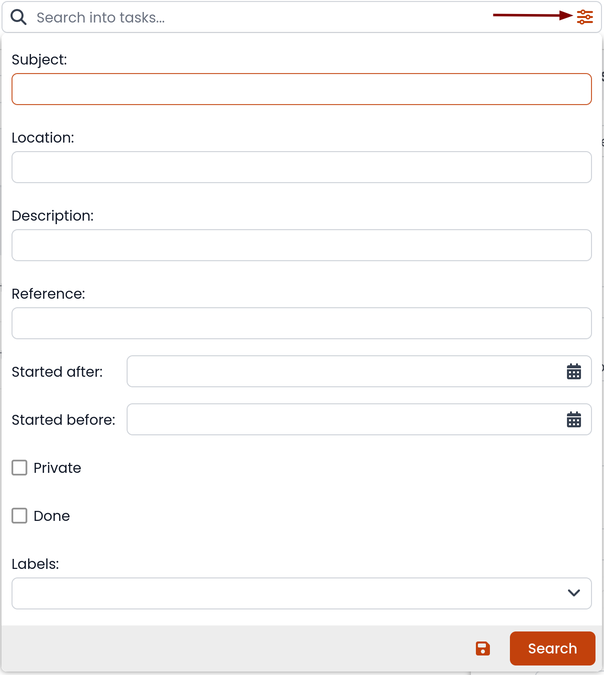
In the bar at the top there is a quick search that is executed on all fields. You can also narrow the search by filling multiple search fields.
Nextcloud integration
Before proceeding, verify that the Nextcloud module has been installed from the Software center.
By default, Nextcloud integration is disabled for all users. To enable it, use the administration panel which can be accessed using the webtop admin password
If you want to enable the service for all users, proceed as follows:
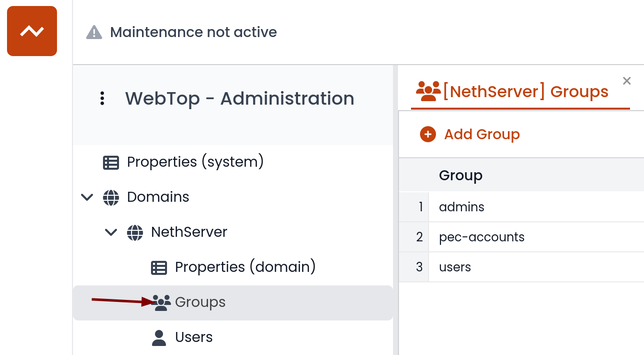
- access the administrative panel and select Groups:
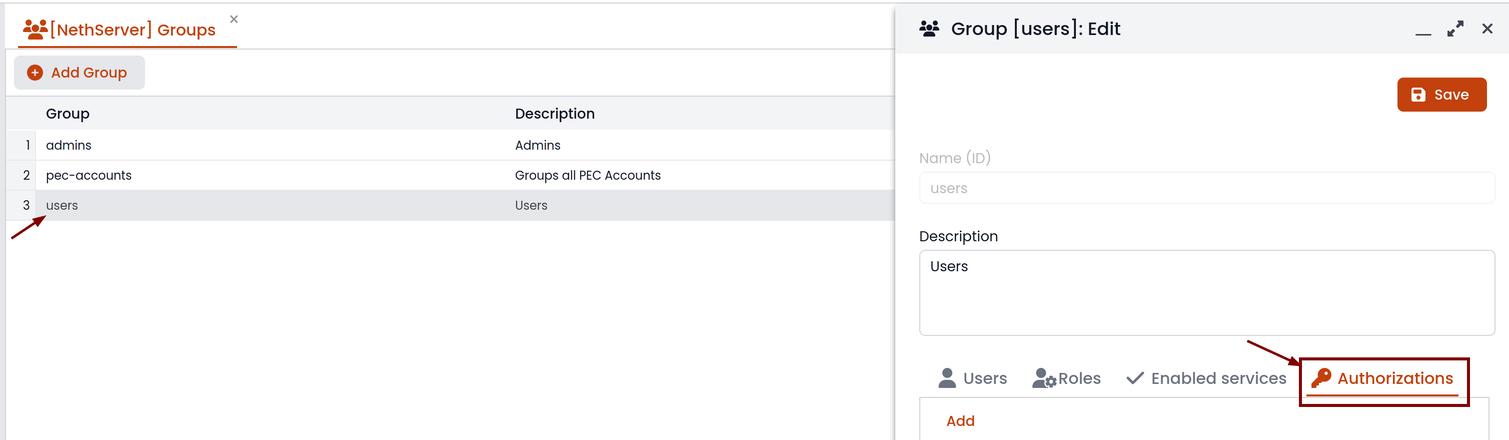
- modify the properties of the "users" group by double-clicking and selecting the button related to the Authorizations:
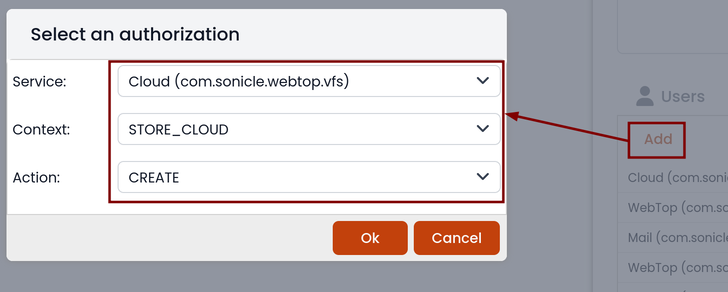
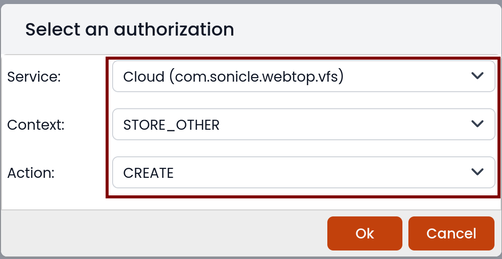
- add to existing authorizations those related to both the
STORE_CLOUDandSTORE_OTHERresources by selecting the items as shown below:
to get this:
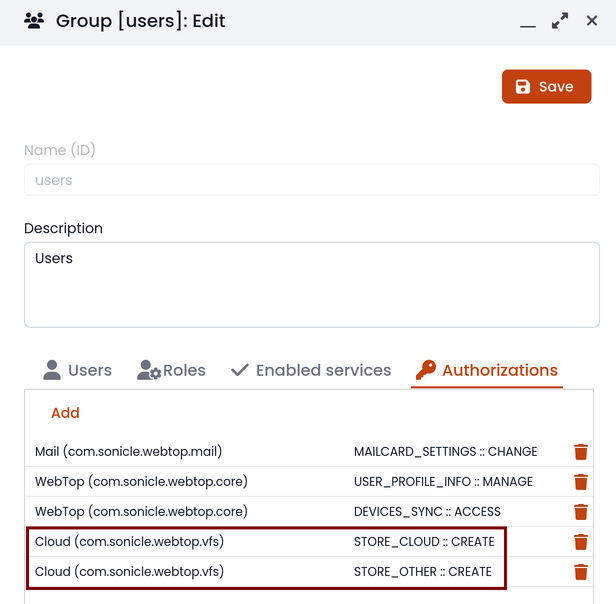
- save and close.
Fron now on, any user it will be able to insert the Nextcloud resource (local or remote) in the personal Cloud.
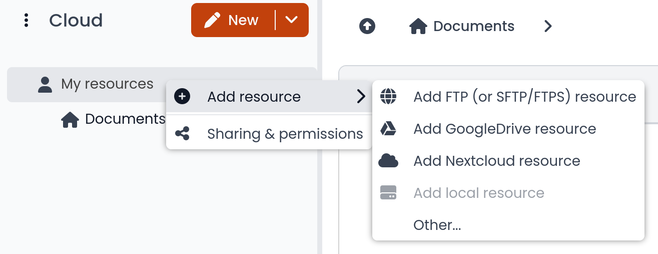
To do this, simply select the Cloud button and add a new Nextcloud resource by right-clicking on My resources and then Add resource in this way:
A pre-filled wizard will open:
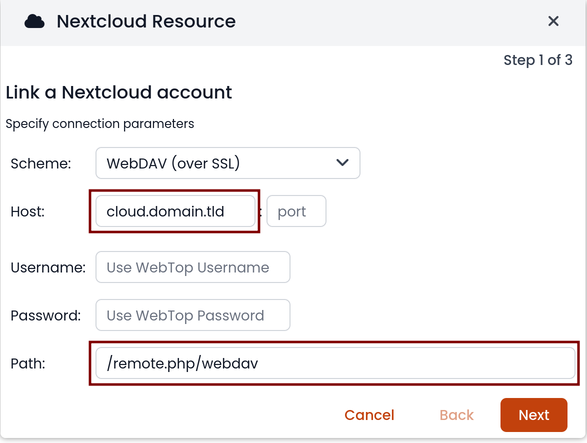
Remember to fill in the User name and Password fields related to access to the Nextcloud resource, otherwise it will not be possible to use the public link to the shared files
The Path must be changed from /nextcloud/remote.php/webdav to /remote.php/webdav. Also make sure to enter the Nextcloud FQDN inside the Host (eg. nextcloud.mydomain.com).
Proceed with the Next button until the Wizard is complete.
Personal Cloud
The personal Cloud module allows you to send and receive documents via web links.
How to create a link to send a document
To create the link, select the button at the top right:
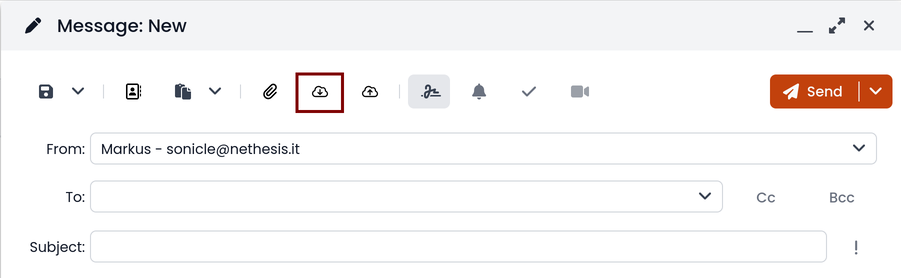
Follow the wizard to generate the link, use the field date to set the deadline.
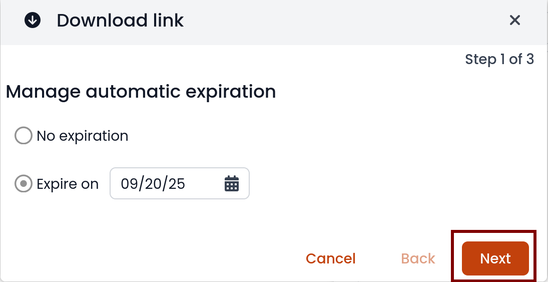
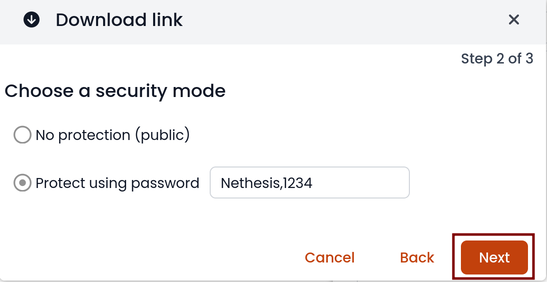
you can create a password to protect it:
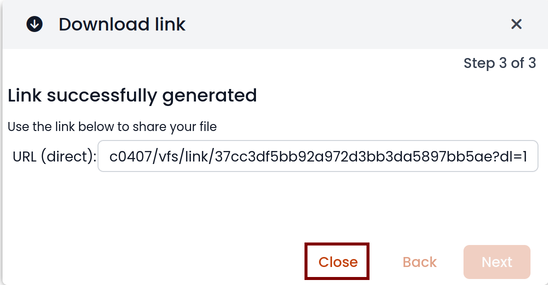
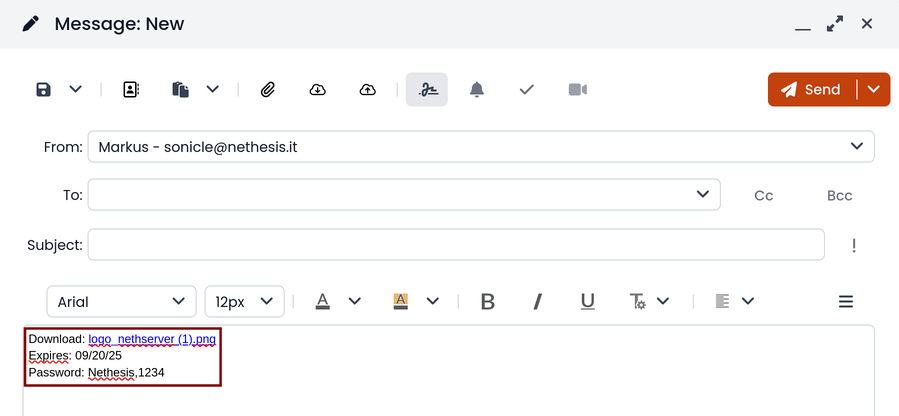
The link will be generated and will be inserted in the new mail:
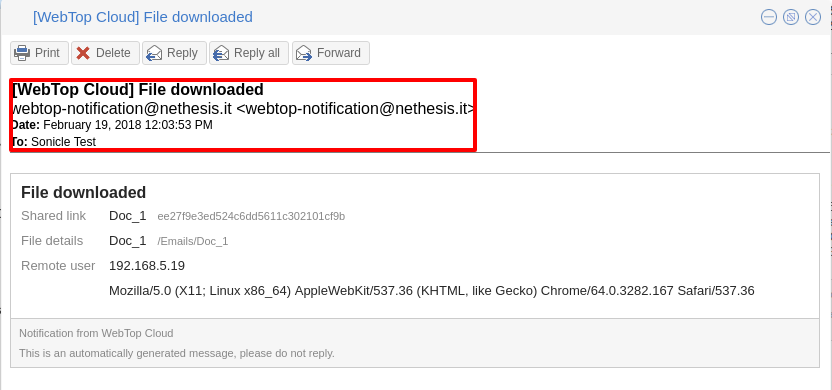
Downloading the file generates a notification to the sender:
Request for a document
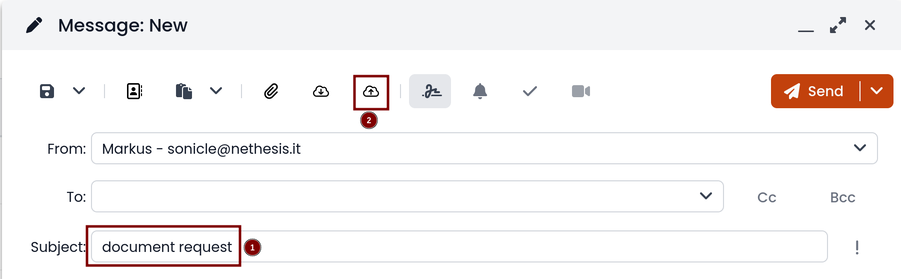
To create the request, insert the subject of the email then select the button at the top right:
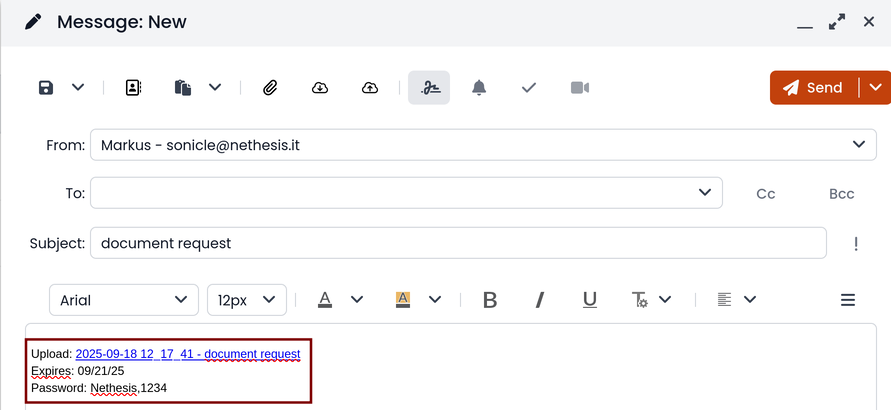
Follow the wizard. You can set both an expiration date and a password. The link will be automatically inserted into the message:
A request email will be sent to upload the document to the Cloud:

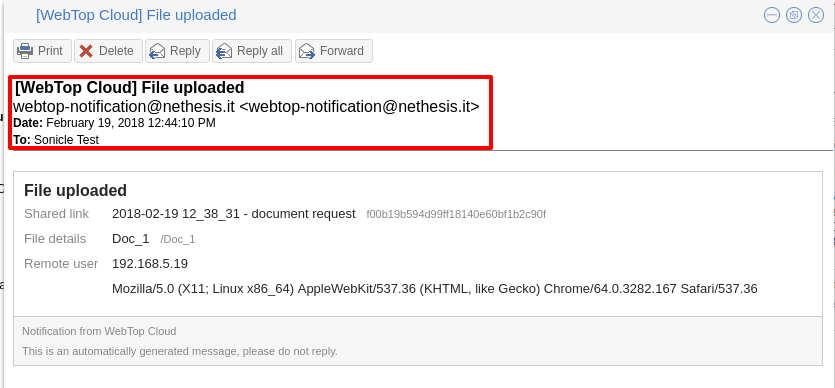
The sender will receive a notification for each file that will be uploaded:
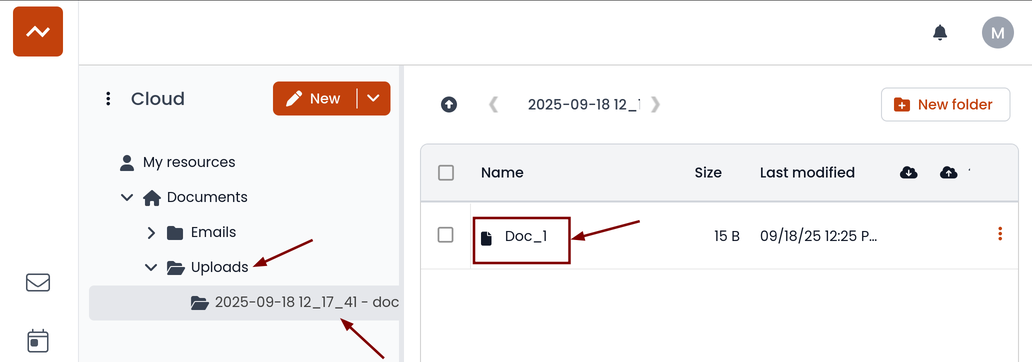
To download the files just access your personal Cloud --> Uploads --> Folder with date and name:
Chat integration
Web chat integration installation is disabled by default for all users.
To enable chat integration:
- Install the "Ejabberd" application from the
Software centerpage See Install applications and Ejabberd. - In Ejabberd
Settingspage, the fieldEjabberd domain (FQDN)must match the value ofMail domainin WebTop's settings. - Access WebTop as admin user then enable the web chat authorization:
- Access the Administration menu, then
Domains --> NethServer --> Groups --> Users --> Authorizations Add (+) --> Services --> com.sonicle.webtop.core (WebTop) --> Resource --> WEBCHAT --> Action --> ACCESS- Click OK then save and close
- Access the Administration menu, then
Jitsi integration
With this integration it is possible to start a new video conference and send the invitation via email, or schedule one by creating the event directly from the calendar. To activate the integration it is necessary to configure the Jitsi instance that you would like to use directly from admin panel by modifying the documented global settings
By default, the videoconferencing service is disabled for all users. To enable it, for all users it is necessary to add a specific authorization from the administration panel:
- Access the Administration menu, then
Domains --> NethServer --> Groups --> Users --> Authorizations Add (+) --> Services --> com.sonicle.webtop.core (WebTop) --> Resource MEETING --> Action --> CREATE- Click OK then save and close
The conference will be available for the users after a new login.
To create a new video conference meeting, you can start from these two buttons:
(top left)
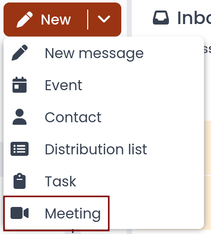
(top right)

It is also possible to do this from a new email window or a new calendar event.
For each new meeting you have to decide whether it should start immediately (instant meeting) or if it should be scheduled by invitation.
There are several ways to share the new meeting link:
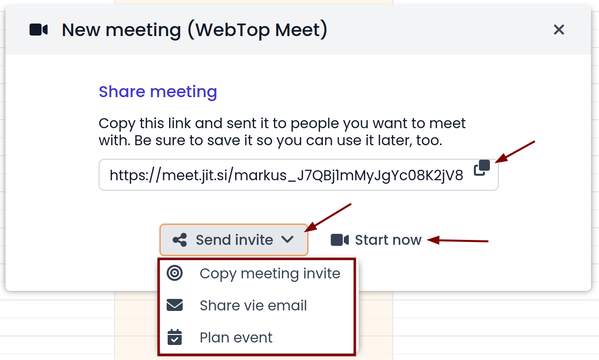
- Start now allows you to immediately access the newly created meeting room and copy the link via the button available next to the URL
- Send invitation -> Copy meeting invite: in this case an invitation message, which also includes the meeting link, will be copied (e.g: To join the meeting on Jitsi Meet, click this link: …)
- Send invitation -> Share by email: you will be asked if you would like to change the subject and date of the meeting, which will then be inserted in the newly generated email:
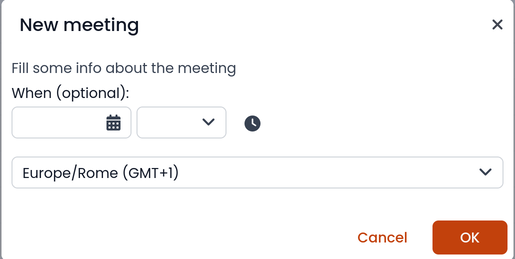
- Send invitation -> Plan event: also in this case you will be asked if you would like to change the subject and date/time of the meeting before creating the calendar event that will allow you to invite other participants.
If an event contains a link to a third-party video conference, the buttons that will allow you to access the meeting directly:
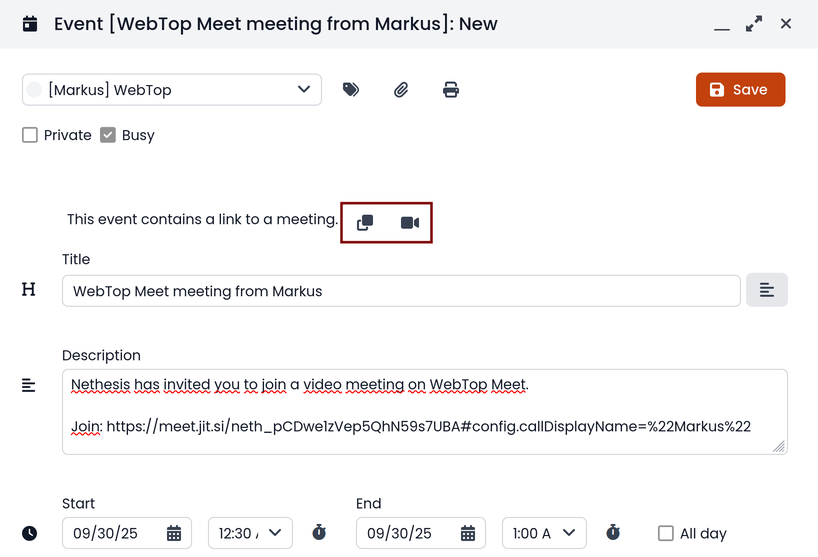
Third-party video calls
The video conferencing services that are currently supported, in addition to Jitsi, are: Google Meet, MS Teams and Zoom. It is possible to add additional platforms through a global setting.
SMS integration
It is possible to send SMS (Short Message Service) messages to a contact that has the mobile number in the address book. To activate sending SMS, first you need to choose one of the two supported providers: smshosting or twilio.
Once registered to the service of the chosen provider, retrieve the API keys (AUTH_KEY and AUTH_SECRET) to be inserted in the WebTop configuration db. The settings to configure are those shown here .
You can do it by accessing the administration panel -> Properties (system) -> Add -> select com.sonicle.webtop.core (WebTop) and enter the data in the Key and Value fields according to the key to be configured:
sms.provider = smshosting or twilio
sms.provider.webrest.user = API AUTH_KEY
sms.provider.webrest.password = API AUTH_SECRET
sms.sender = (default optional)
The sms.sender key is optional and is used to specify the default sender when sending SMS. It is possible to indicate a number (max 16 characters) or a text (max 11 characters).
Each user can overwrite the sender by customizing it as desired through its settings panel: WebTop -> Switchboard VOIP and SMS -> SMS Hosting service configured -> Default sender
To send an SMS from the address book, right-click on a contact that has the mobile field filled in -> Send SMS
Launcher customization
The launcher is the icon-based menu on the left of the page. You can add custom buttons to the launcher.
To configure the buttons, access the WebTop administration panel and select -> Domains -> NethServer -> Launcher :
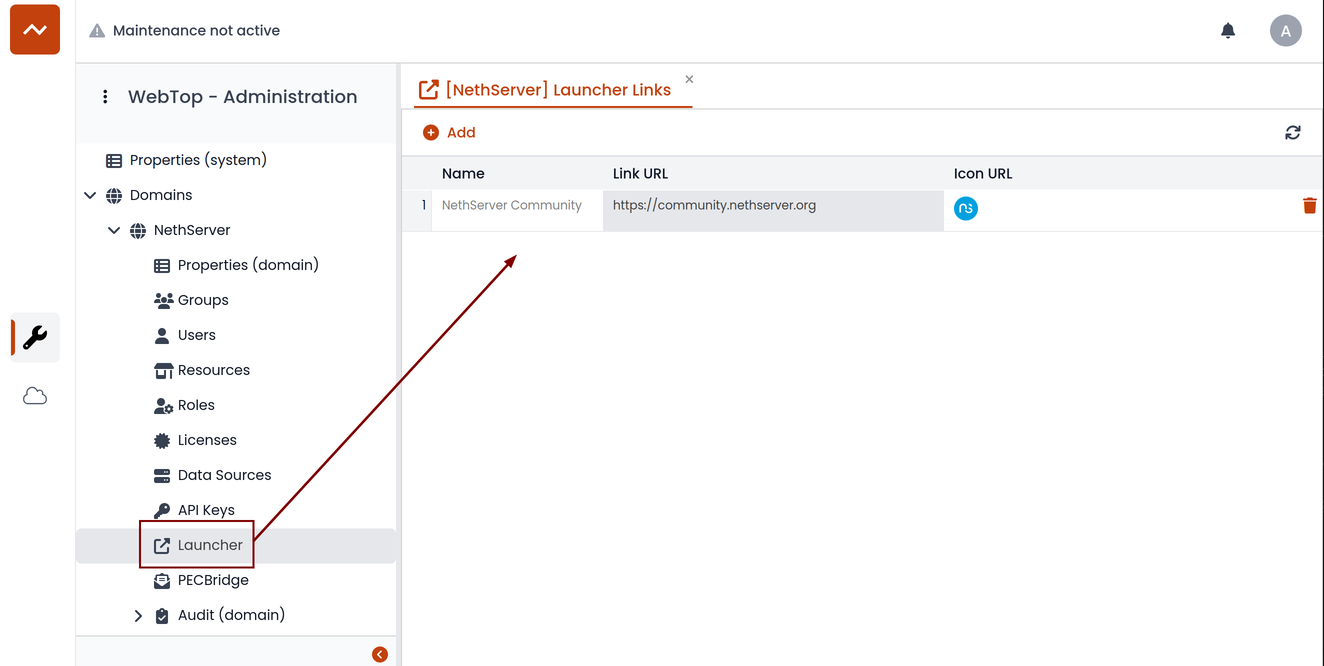
For each button, enter these three values
Name: tab descriptive text that appears with mouse-overLink URL: URL to be opened in a new browserIcon URL: icon image URL, it should always be a publicly reachable address. To avoid scaling problems, use vector images
If you can't find a public URL for the icon image, you can upload the icon on WebTop public cloud. WebTop public cloud already hosts mailcards images. Access the administrator panel and click on Cloud -> Public Images, then insert a URL like https://<public_name_server>/webtop/resources/156c0407/images/<icon.svg>.
The configured custom link buttons will be shown to all users at the next login.
Browser notifications
WebTop can notify new mail messages and upcoming calendar events.
To activate it, simply access the general settings of your user:
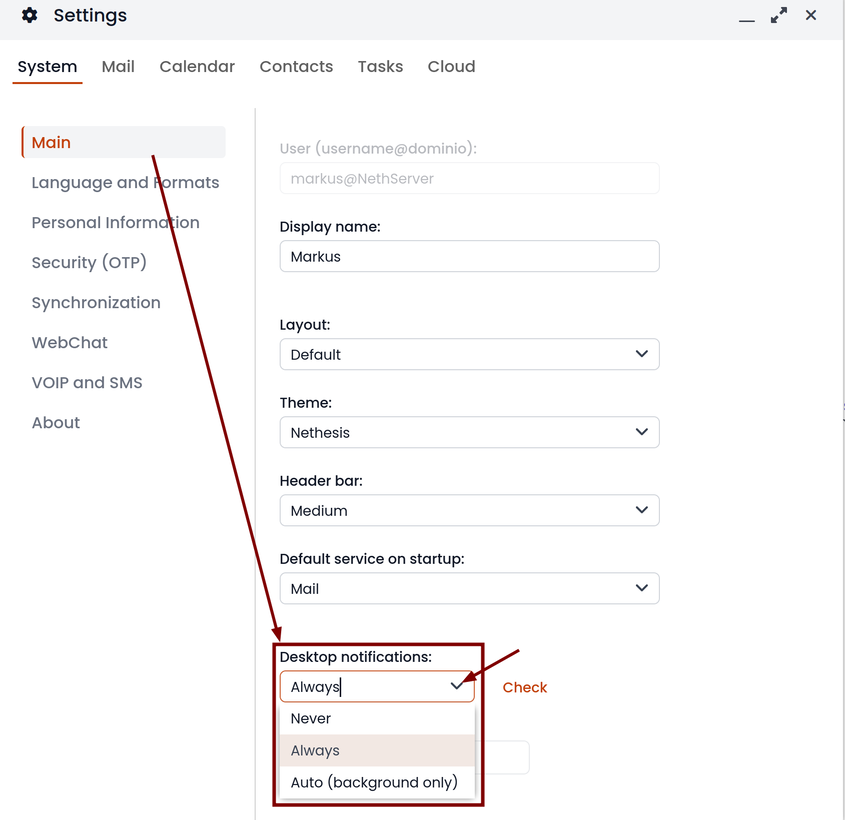
It is possible to enable desktop notifications in two modes:
- Always: notifications will always be shown, even with the browser open
- Auto (in background only): notifications will be shown only when the browser is in the background
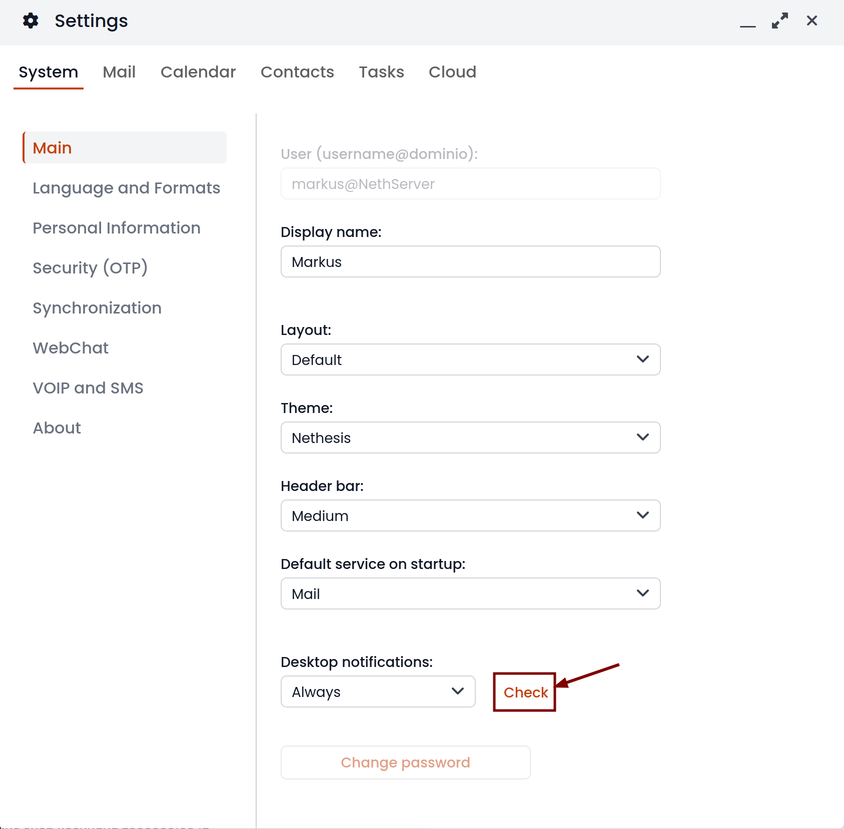
Make sure to allow notifications inside your browser.
If you need to enable this consent later on a different browser just click on the appropriate button:
External IMAP accounts (Beta)
External IMAP accounts can be accessed in read-only mode. Each user can have a maximum of 3 external accounts.
To enable the feature:
- Access the administration panel, then selected Properties (system)
- Click on Add button and select com.sonicle.webtop.mail
- Create a new key named
external-account.enabledwith valuetrue - Give a specific authorization to the user by setting:
- Service:
com.sonicle.webtop-mail - Resource:
EXTERNAL_ACCOUNT_SETTINGS - Action:
CHANGE
- Service:
Users can now configure personal external accounts by accessing the Settings section.
Subscribing remote resources
WebTop supports subscriptions to remote calendars and contacts (directory) using CardDAV, CalDAV and iCal.
Remote calendars
An Internet Calendar can be added and synchronized. To do so just click the right button on personal calendars, Add Internet Calendar. Two types of remote calendars are supported: WebCal (ICS format) and CalDAV.
Synchronization of Webcal calendars (ICS) is always done by downloading every event on the remote resource every time, while only the differences are synchronized with the CalDAV mode
Example of Google Cal remote calendar (Webcal only - ICS)
- Take the public access ICS link from your Google calendar: Calendar options -> Settings and sharing -> Secret address in iCal format
- On WebTop, add an Internet calendar of type Webcal and paste the copied URL without entering the authentication credentials in step 1 of the wizard.
- The wizard will connect to the calendar, giving the possibility to change the name and color, and then perform the first synchronization.
The first synchronization may fail due to Google's security settings. If you receive a notification that warns you about accessing your resources you need to allow them to be used confirming that it is a legitimate attempt.
Remote contacts (directory)
Google CardDAV remote address book
Steps:
-
on WebTop, configure a new Internet address book, right-click on Personal Categories -> Add Internet address book and and enter a URL of this type in step 1 of the wizard:
https://www.googleapis.com/carddav/v1/principals/XXXXXXXXXX@gmail.XXX/lists/default/Replace theXwith your GMail account -
enter the authentication credentials (as user name use the full address of gmail):
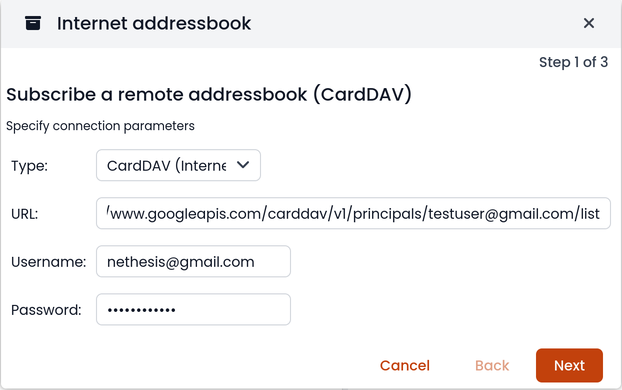
-
the wizard in the following steps will connect to the phonebook, giving the possibility to change the name and color, and then perform the first synchronization
You must enable the synchronization into your Google account and enable access for App Password.
Synchronization of remote resources can be performed manually or automatically.
Automatic synchronization
To synchronize automatically you can choose between three time intervals: 15, 30 and 60 minutes. The choice of the time interval can be made in the creation phase or later by changing the options. To do this, right-click on the phonebook (or on the calendar), Edit Category, Internet Addressbook (or Internet Calendar):
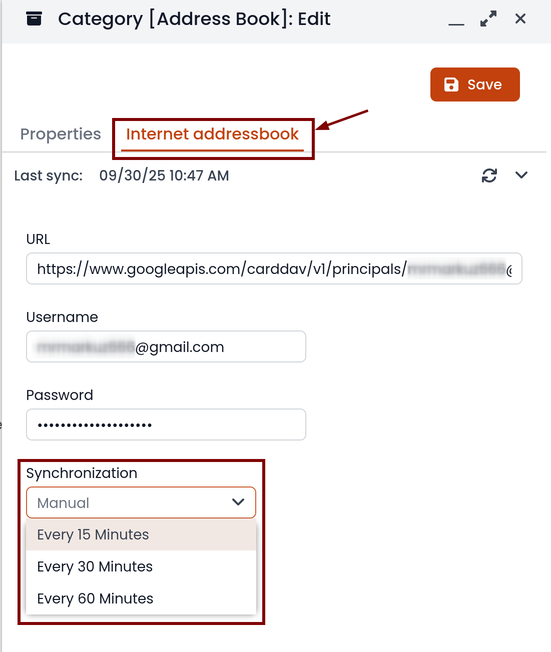
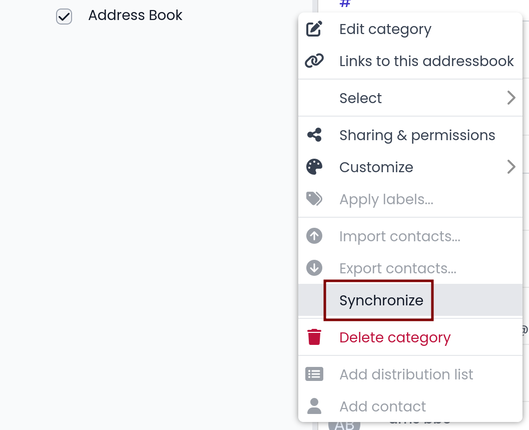
Manual synchronization
To update a remote address book, for example, click on it with the right mouse button and then select the item "Synchronize":
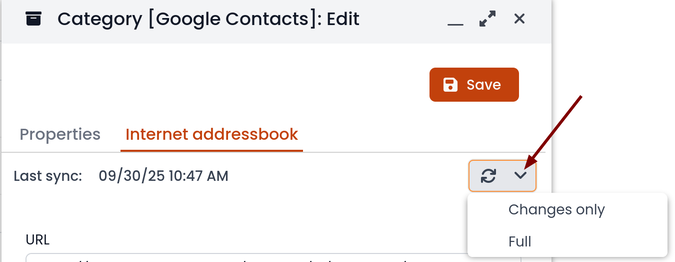
For CardDAV address books, as well as for remote CalDAV calendars, you can select whether to perform a full synchronization or only for changes. To do this, right-click on the phonebook (or on the calendar), Edit Category:
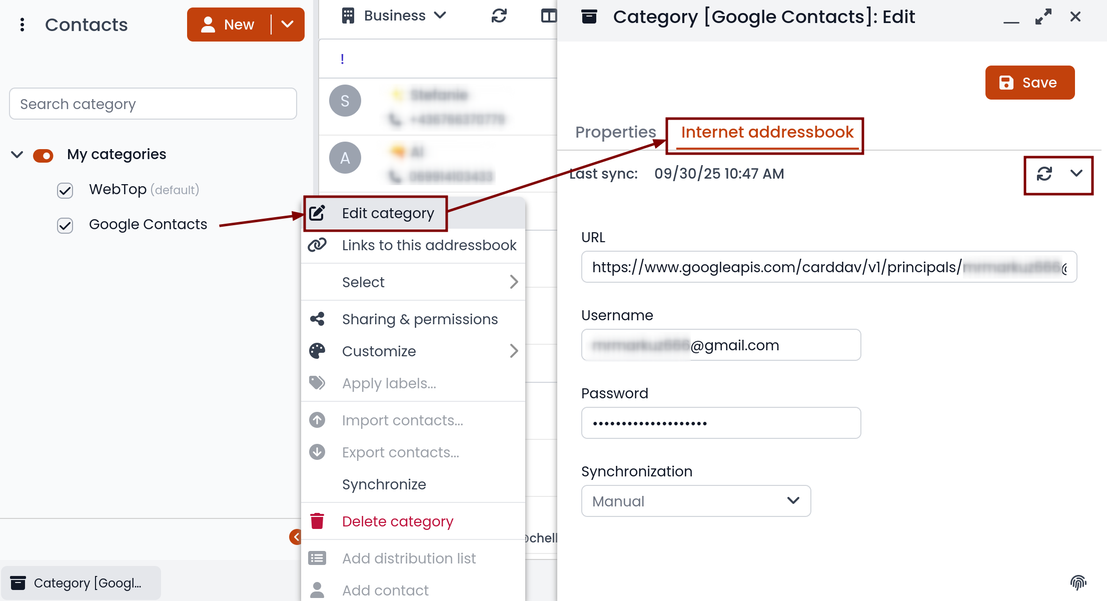
Select the desired mode next to the synchronization button:
New device notification
You can receive an email that notifies when a new device accesses the account for the first time.
By default, this feature is disabled for all users to avoid too many unintentional false positives on first login.
You can customize this feature by accessing the administrator panel.
Accesses made through impersonate (admin!<user>) will never send an email notification
Import contacts and calendars
WebTop supports importing contacts and calendars from various file formats.
Contacts
Supported contacts format:
- CSV - Comma Separated values (*.txt, *.csv)
- Excel (.*xls, *.xlsx)
- VCard (*.vcf, *.vcard)
- LDIF (*.ldif)
To import contacts:
-
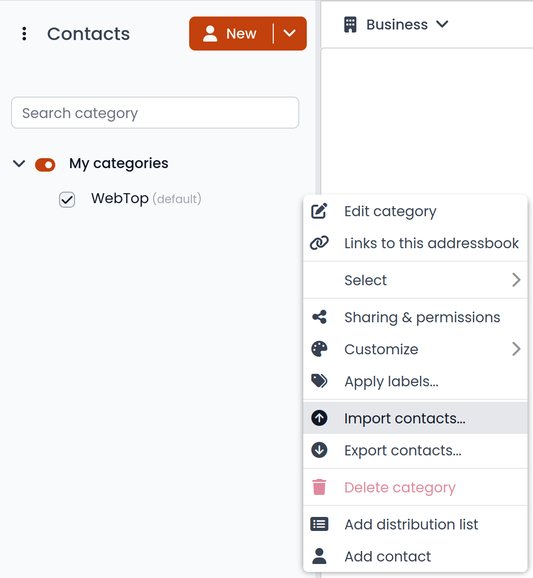
right click on the target phone book, then select Import contacts
-
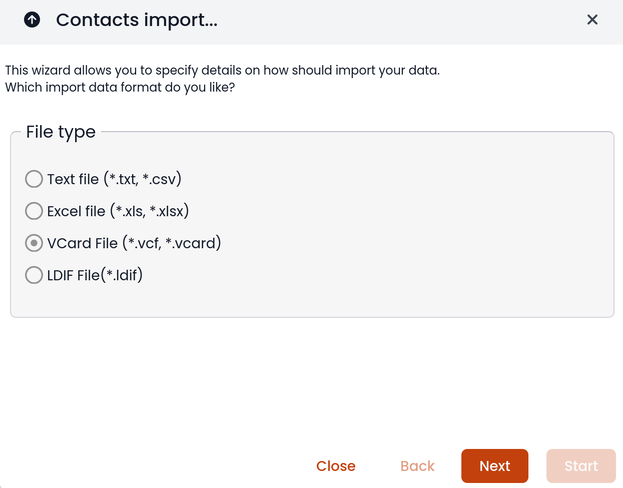
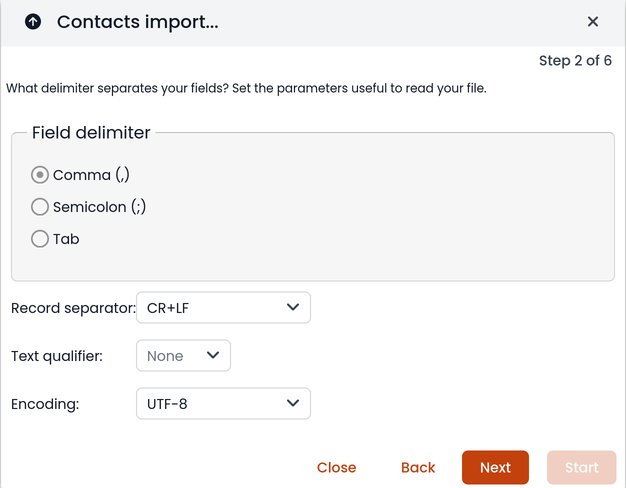
select the import format and make sure that the fields on the file match the ones available on WebTop
If you are importing a phone book exported from Outlook, make sure to set Text qualifier to " value.
Calendars
Supported calendar format: iCalendar (*.ics, *.ical, *.icalendar)
To import events:
-
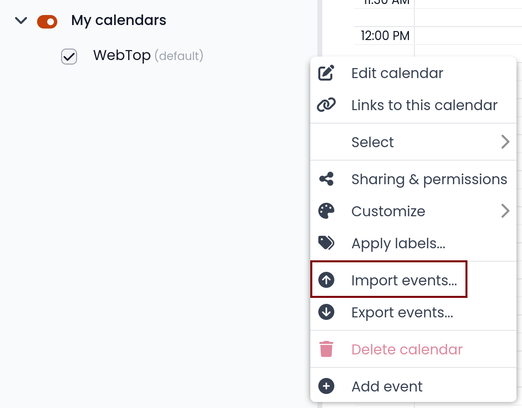
right click on the target calendar, then select Import events
-
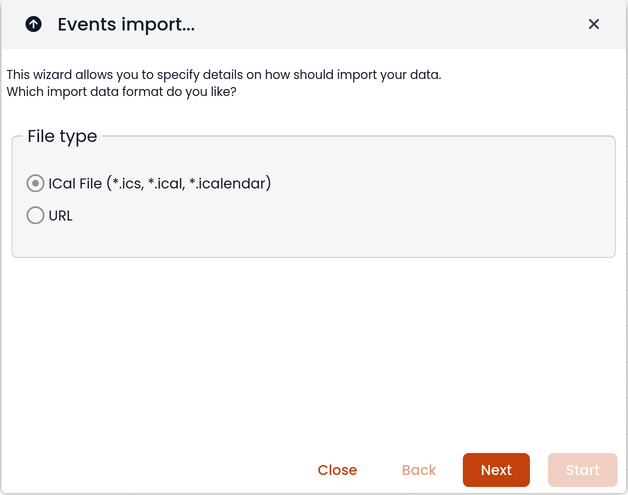
select the import format
-
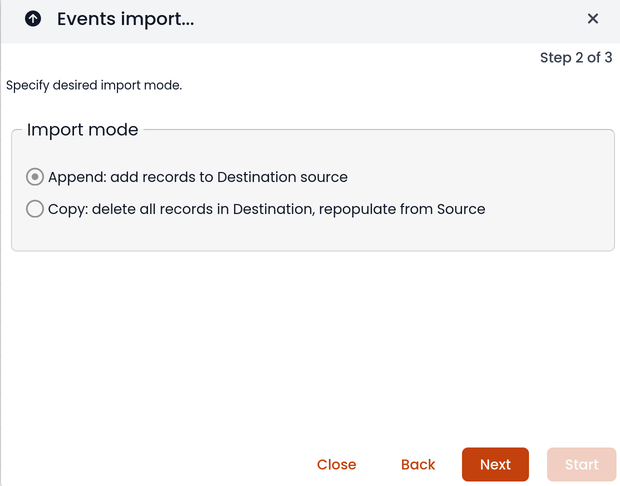
then choose if you want to delete all existing events and import new ones, or just append imported data to existing calendar events
Mail composer customization
Hide auto-suggested recipient in lookups
You can disable the suggestion of automatically saved addresses. Access the web administration panel -> Properties (system) -> Add ->, select com.sonicle.webtop.core (WebTop) and enter the data in the Key and Value fields according to the key to be configured:
recipient.provider.auto.enabled = false (default is true)
Edit subject of a mail and save it
To enable the modification of the subject for received and sent emails, access the web administration panel -> Properties (system) -> Add -> select com.sonicle.webtop.mail (Mail) and enter the data in the Key and Value fields according to the key to be configured:
message.edit.subject = true (default is false)
Delete automatically suggested email addresses
When compiling the recipient of a mail, some automatically saved email addresses are suggested. If you need to delete someone because it is wrong, move with the arrow keys until you select the one you want to delete (without clicking on it), then delete it with Shift + Canc