User portal
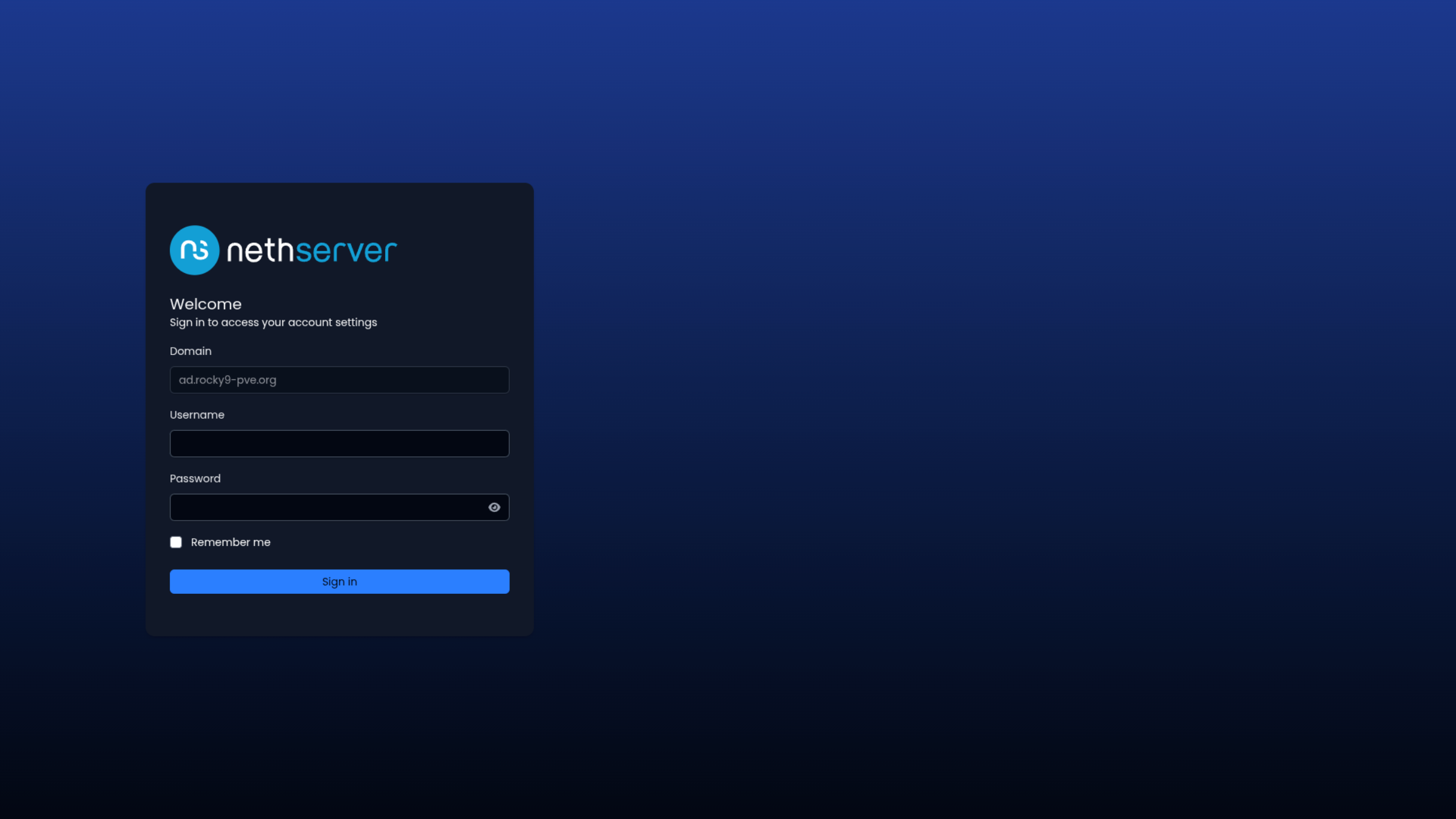
The user portal is a web interface that allows you to manage your account and settings on NethServer 8.
Accessing the user portal
You can access the user portal through the web browser at:
https://<your-server-address>/user-portal
Managing your password
Changing your own password
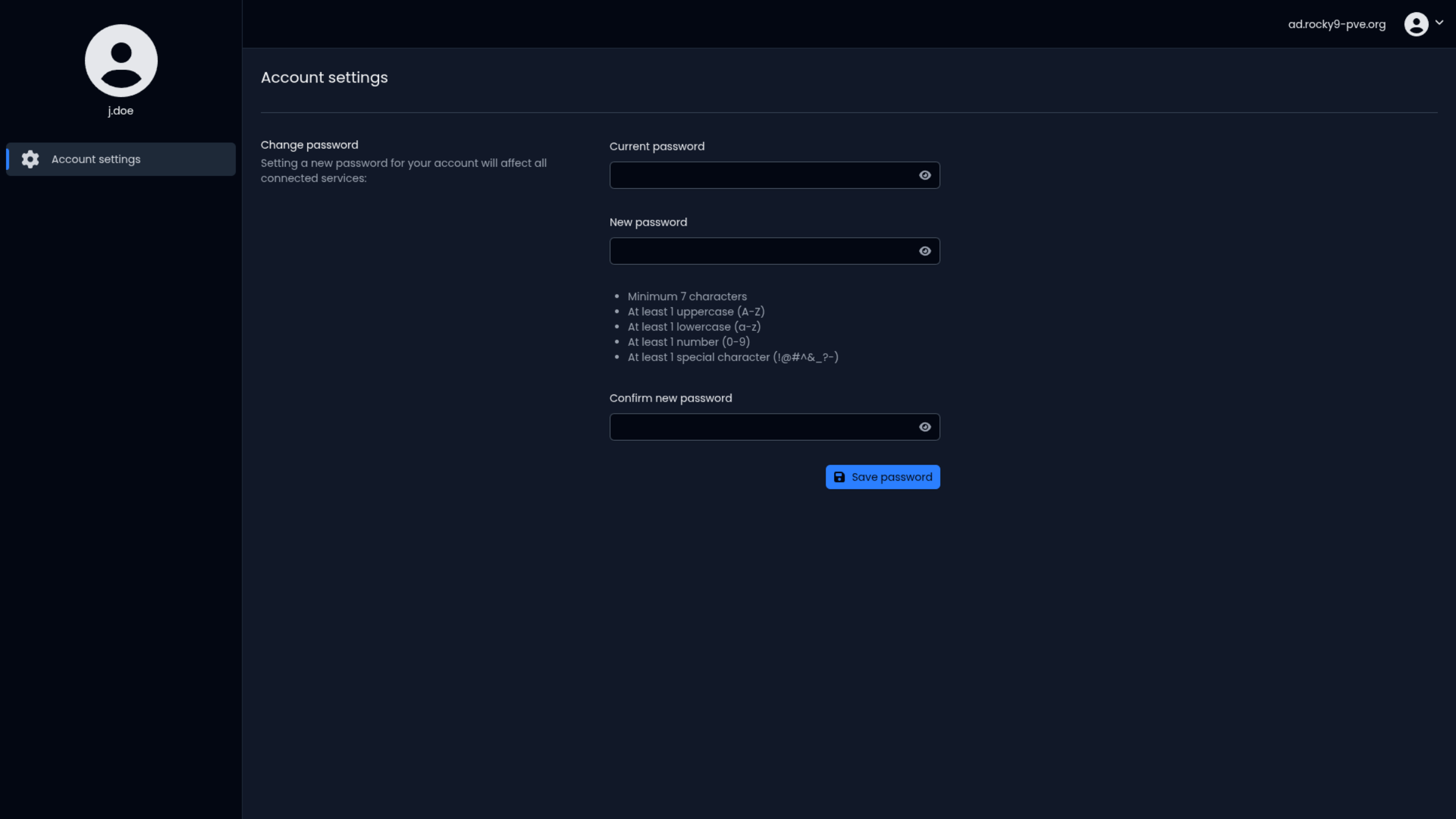
You can change your password directly from the user portal. It's good practice to change your password regularly for security.
To change your password:
- Acess the user portal ang log in
- As a normal user, you will access directly the change password form.
- Enter your current password
- Enter your new password twice to confirm
- Click Save password button
If you forgot your password or cannot access the portal, contact your system administrator for assistance.
User management (Administrator only)
The following sections are only available to user domain administrators who have permission to manage user accounts.
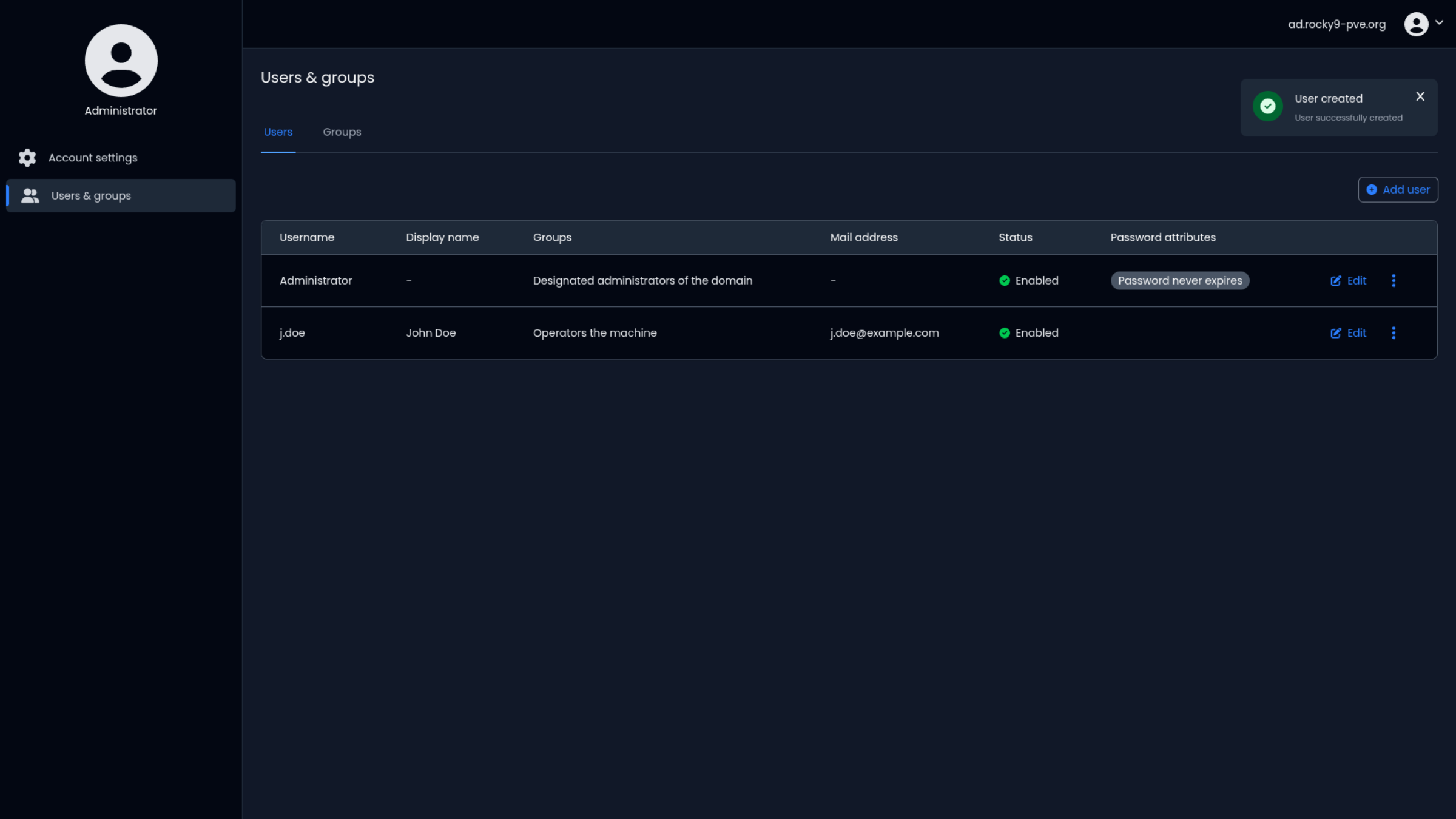
After logging in as an administrator, you will see a list of all user accounts in the system under the
Users & Groups section of the portal.
Creating a new user
You can create new user accounts through the portal interface. This is useful when onboarding new team members or adding new accounts to the system.
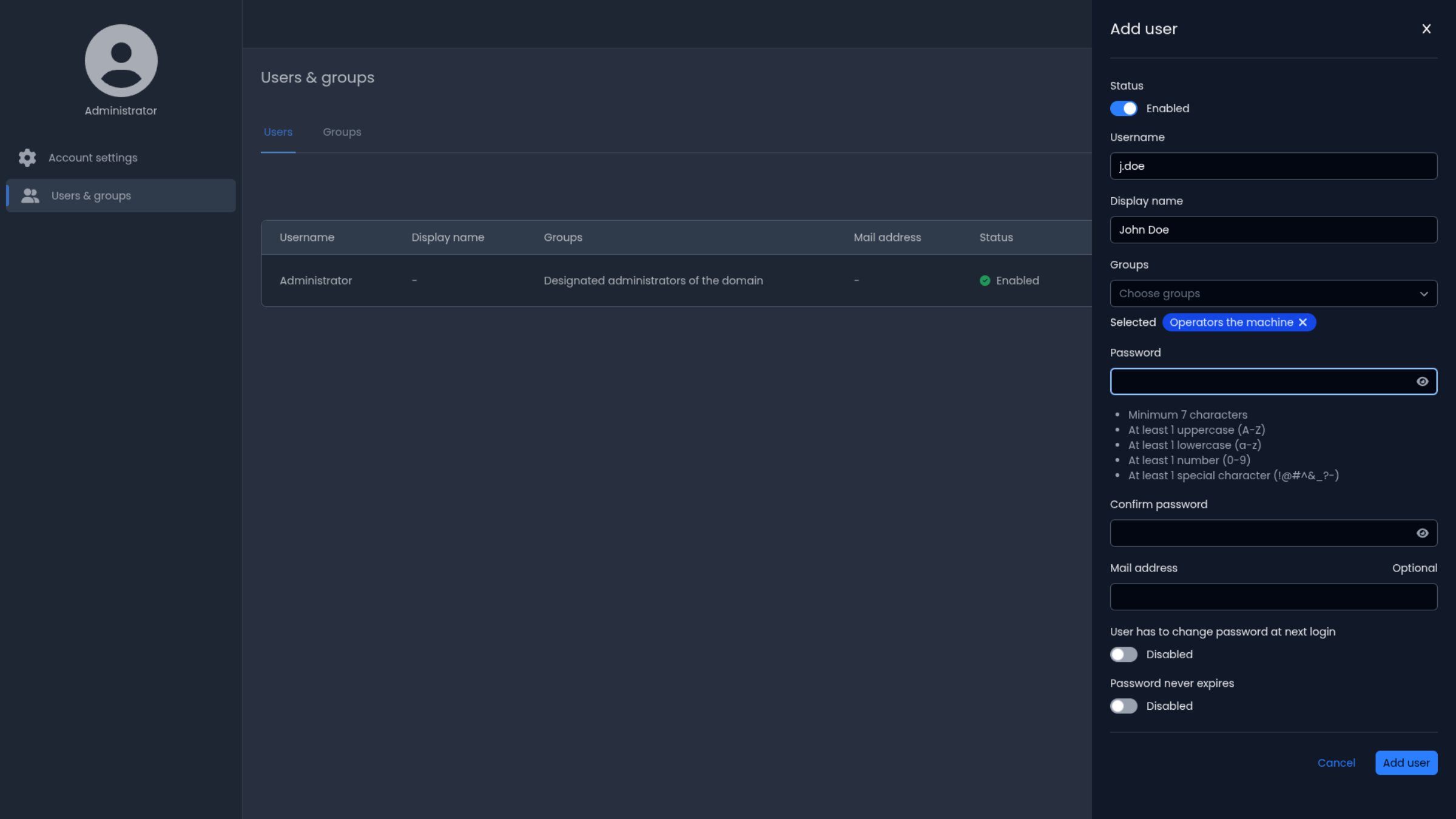
To create a user:
- Navigate to the
Users & Groupssection in the portal - Click the Add Userbutton
- Fill in the required information:
- Username: The login identifier for the new user
- Display Name: The user's display name, it should contain the name and the surname of the user
- Password and Confirm Password: The initial password
- Fill the optional fields as needed:
- Email: Contact email address (optional)
- Groups: Assign the user to one or more groups for permissions (optional)
- Click Create or Save to complete
By default, the user will use the password policy defined in the system, but you can also set specific options for the user. Select the desired options for the user:
- Users has to change password at next login: If enabled, the user will be required to change their password the first time they log in after account creation.
- Password never expires: If enabled, the user's password will not expire, and they will not be prompted to change it periodically. This option should be used with caution for security reasons.
Editing an existing user
You can modify user account details such as name, email, or other profile information.
To edit a user:
- Find the user in the user list
- Click the Edit button next to their name
- Update the desired fields
- Click Save to apply changes
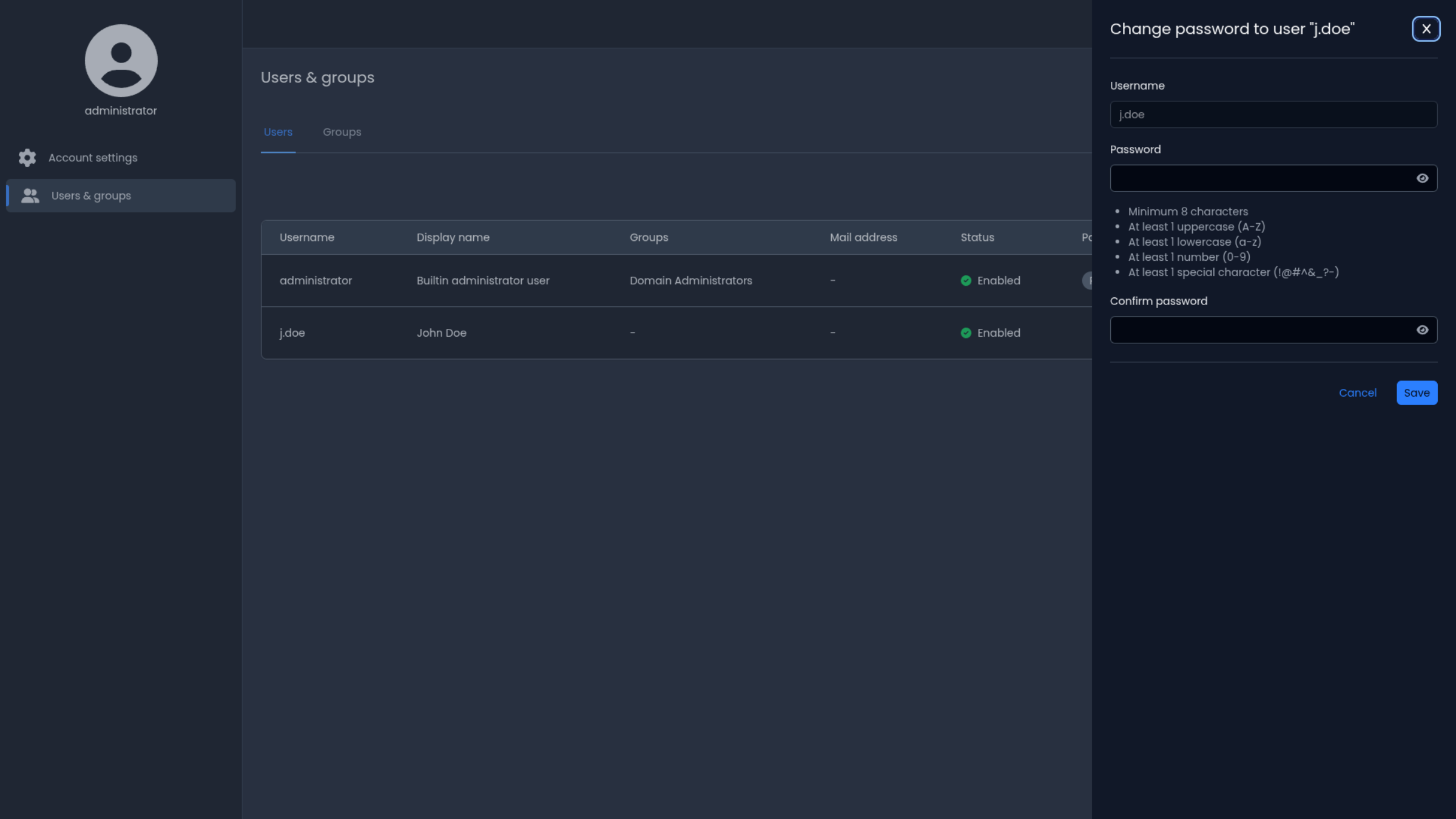
Changing another user's password
You can reset or change passwords for other users in the system.
To change another user's password:
- Find the user in the user list
- Click the Change Password option under the kebab menu (three dots) next to their name
- Enter the new password
- Optionally, check Force password change at next login to require the user to change it themselves
- Click Save
Deleting a user
When a user no longer needs system access, you can delete their account.
To delete a user:
- Find the user in the user list
- Click the Delete user button next to their name
- Confirm the deletion when prompted
- The user account will be permanently removed from the system
Cluster administrators can also manage user accounts through the administration console with additional options for permissions and account restrictions.